fredmiranda.com
Login

Moderated by: Fred Miranda
Username  

  New fredmiranda.com Mobile Site
  New Feature: SMS Notification alert
  New Feature: Buy & Sell Watchlist
  

FM Forums | Post-processing & Printing | Join Upload & Sell


Lightroom Classic v14.4+ new Denoise workflow optimization?


rscheffler
Offline
• • • • • •
Upload & Sell: Off
p.1 #1 · Lightroom Classic v14.4+ new Denoise workflow optimization?


I finally updated to LRC 14.5.1 from a previous version that generated separate Denoise DNG files. Most of my event work is higher ISO and I've found Denoise very useful at what it does. Therefore, I use it on virtually 100% of my images.

My workflow with the previous Denoise DNG files was to move them to a separate folder at the end of a job/project and then run them through Adobe's DNG Converter app with lossy compression applied. I'd then save these lossy compressed files with the original RAW, simply as a source for all of the edits saved to the images if I ever had to reprocess them (at which time I'd generate new Denoise DNGs and copy the edits over from the lossy compressed files - but 99% of the time I never revisit client work to reprocess, so this clunky solution would rarely be used in a high volume situation). I wanted the lossy DNGs for the benefit of keeping a set of the edits that were independent of the catalog file and they would typically compress way down to a bit less than Canon's own CRAW lossy compression, so it wasn't a terrible storage hit, pretty much equivalent to saving a set of jpegs.

With the v14.4 move away from generating DNGs, I've noticed a few things and browsed the comments over at Lightroom Queen about the 14.4 update. It appears Denoise, AI masks, AI generative repairs, etc. are stored to the lrcat-data file in the catalog folder. But it seems like a nearly equivalent amount of data is saved to the lrcat file as well, but only after I do a 'save metadata to files' to also save the edits to sidecar XMP files. These XMPs jump in size to between 7-30MB (for Canon R5II 45MP files).

My current project is 3800 images large, about 75% are 45MP files and the rest are 24MP. All have had Denoise applied and the catalog is only this project, saved in the project folder and not in the default LR catalog location. After running the 'save metadata to file' step, the catalog folder ballooned to 70GB, virtually equally split between the lrcat and lrcat-data files. About 3GB was in the lrcat-wal file, which was temporary because it reset when the catalog was closed and reopened (not the case for the lrcat or lrcat-data files). Edits saved to the XMP files total about 40GB.

I should add that I always make a separate catalog for every project/job and given how the catalog now appears to balloon with Denoise data in it, the catalog will now always be in the project folder itself and off the boot drive (to save the limited space I have there).

So the point/question I'm getting to is: there seems to be data duplication. I really like having edits saved to XMP as a fallback in case of catalog corruption and it's easy to grab a few files and add them to another catalog and have all their edits in place. But saving to XMP appears to bloat the lrcat file. Has anyone figured out if we can trash the lrcat-data file IF we saved edits to XMP sidecar files?

(It appears the answer is YES.)

I explored a bit more and noticed if I unchecked Denoise for a file and did a 'save metadata to file' that the XMP discarded the saved Denoise data and shrank considerably in size (to sub-1MB). I made a test catalog of 50 images and when I deselected Denoise in all of them (had to do it one by one, making a batch deselection change didn't apply deselection to Denoise), and did another 'save' the XMP files all shrank to below 1MB each. But the lrcat-data file did not change size, likely because the Denoise data is being retained as a part of each file's edit history. When I imported the 50 images to the test catalog, all already had Denoise applied in another catalog, and that edit info was transferred via their XMP files to the new catalog. At this stage the lrcat file was only a few MB, but the lrcat-data file was about the same size as all the XMP files (with Denoise data) combined. After I did a 'save metadata to file' for all 50 files, the lrcat file shot up very similar in size to the lrcat-data file. After closing that catalog, I deleted the lrcat-data file and reopened the catalog. LRC presented an error message that if I continued, AI edits would be lost. I continued anyway and AI masks were still there, as was Denoise for each image. Presumably because the bloated lrcat file contained this information. Meanwhile, the lrcat-data file was only a few KB in size. I did a 'read metadata from files' step to see if anything would change with the images. There appeared to be no change but the lrcat-data file was now back to its previous size before I last closed LRC and deleted that file.

So it seems there's possibly a bug (according to Lightroom Queen) with how data is saved to the lrcat file if one also saves to XMP sidecar files. In any case, it appears that the bulky Denoise data is being duplicated in both the lrcat and lrcat-data files and when this is the case, deleting the lrcat-data file (at the end of a project) shouldn't discard the Denoise and other AI edits. And one would also have the edits backed up to XMP.

Also, given the usefulness of Denoise and given that it could add 7-30MB of data to the catalog for each 45-50MP file to which it has been applied, one can imagine that it wouldn't take too much to cause a LR catalog containing thousands of images to become very massive and potentially cause storage issues for those with relatively small boot drives. Additionally, simply turning off Denoise on an image by image basis may not remove this data from the catalog because it appears it's being retained as a part of each file's edit history.


Sep 01, 2025 at 08:44 PM
schlotz
Offline
• • • • •
Upload & Sell: On
p.1 #2 · Lightroom Classic v14.4+ new Denoise workflow optimization?


Very interesting Ron. On the surface, this definitely appears to be in the category of bloatware which can easily consume storage space very quickly for anyone with a large photo collection that uses Denoise AI. Somehow this situation doesn't surprise me considering some of the reported bugs. LR engineering has shown a trend in missing the obvious that users quickly run into. If this gets reported, and it should by the way, let's see how they initially address it. The irony... people complained when the earlier version created a separate DNG which was large. The solution was to place essentially the DNG data into two existing data files. Thus the amount of storage being used up is potentially more than if just the DNG was created.


Sep 02, 2025 at 06:42 AM
RoamingScott
Offline
• • • • • •
Upload & Sell: Off
p.1 #3 · Lightroom Classic v14.4+ new Denoise workflow optimization?


Overall, the updates from 14.4 and on have been suspect at BEST. I'd roll back if the denoise and super res hadn't gotten so much better.

Thanks for reporting your findings on this, something to keep an eye on for big denoise projects for sure.


Sep 02, 2025 at 08:47 AM


Search in Used Dept. 

rscheffler
Offline
• • • • • •
Upload & Sell: Off
p.1 #4 · Lightroom Classic v14.4+ new Denoise workflow optimization?


Yeah, I'm a bit torn about the move away from DNGs but my preference is leaning towards the current implementation because Denoise info can now be saved to XMP alongside the original files, which IMO makes file management simpler.

From reading comments at Lightroom Queen, other complaints about 14.4 and later include laggy LRC performance. For example, seconds-long delays when moving from image to image in the Develop module, calling up the Copy Settings window, applying (pasting) those settings, etc. I also experienced these delays, but only immediately after running a Denoise batch operation. I noticed LRC was still pulling >700% CPU demand and was clearly still 'processing' something in the background. But once that settled, the delay/lag was gone.

The biggest issue for me is that LRC is locked out during the initial Denoise generation stage, which when dealing with hundreds or more images, makes it a conscious decision to leave and work on something else, or as an overnight operation. I can appreciate that for @schlotz on a tight sports deadline, having your system locked out for minutes at a time to run even a small Denoise batch will be problematic, when instead you could be doing other edits.

That said, as Denoise has evolved, Adobe has decreased the storage impact. The original DNGs were massive (IIRC 2-3, maybe even 4x larger than the originals) and the latest DNGs were a significant improvement. Based on what I'm seeing with XMP file sizes, the Denoise impact appears to vary based on image content and parameters. As mentioned in my first post, for R5II files with Denoise applied, XMPs range between ~7-30MB, which if compared against the previous Denoise DNGs, is a definite reduction in storage impact and aligns more closely with the storage impact of lossy DNG conversions of Denoise DNGs. However, that this data is now hidden in the catalog files, where it cannot be easily segregated or pruned from other core LR data, certainly risks significant storage bloat, especially for those who have a single unified catalog for all their work (probably the majority).

At the least Adobe need to address the apparent duplication of Denoise data stored to both the lrcat and lrcat-data files IF 'save metadata to file' is used to save edits to XMP sidecar files.

It would also be welcome for Adobe to add options to purge Denoise data from a catalog in a user selectable manner. For example on an image by image basis, folder by folder basis, etc. Or even an automated option based on a user-selectable time period since a file was last edited (the file's corresponding preview image would be retained to reflect the Denoise-applied edits after purging of the Denoise data). An unknown would be how this might impact other edits, such as AI masks. Perhaps those edits could be 'frozen' with a 'restore' option added to rebuild Denoise data whenever the user wishes to work with images that were purged of that data.

Given the effectiveness and popularity of Denoise, I imagine many photographers will incorporate it as a regular part of their workflow. I certainly have. And I feel the catalog bloat issue will become a significant one for the majority who also use LR as a DAM solution (a major LR feature) and therefore likely have a single, unified catalog of images (since this is how a DAM app works best).


Sep 03, 2025 at 12:41 PM
rscheffler
Offline
• • • • • •
Upload & Sell: Off
p.1 #5 · Lightroom Classic v14.4+ new Denoise workflow optimization?


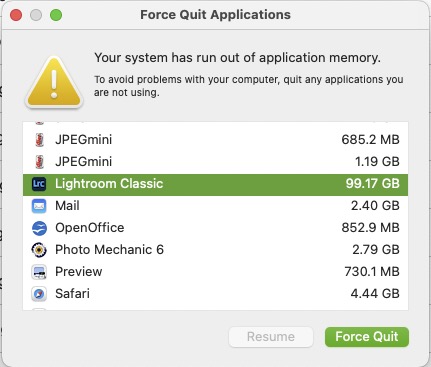
The past couple days while working on my 3800 image project I've had a few instances of MacOS suddenly popping up an application force quit window because the system has run out of memory. This is the first time this has happened with my Studio M4 Max with 48GB RAM since I got it in June. When this window appears, LRC is usually in the 60GB memory range, plus whatever other apps I have running. The last time, LRC was over 70GB memory use. Photo Mechanic also seems to be a bit of a memory hog up into the teens of GBs if it has been open a while and I've browsed large image collections.

Quitting non essential apps usually removes enough memory pressure to quit and restart LRC normally (I don't like to force quit it just in case recent edits are lost). I left the force quit window open because it shows app memory use in real time and had it running while working in LRC after restarting it. Memory use seemed to hover in the 10-15GB range. Having this window open over LRC was a bit annoying after a while so I closed it, but the same info appears to also be available in Activity Monitor. After working on a couple hundred photos last night and running 'save metadata to file' to save edits to XMP, LRC is back up to around 50GB of memory use today. Actual system memory in use right now is 37GB, 12GB cached and 29GB swap...

I'll try to keep an eye on this and see if maybe the save metadata step is causing some of this memory pressure.


Sep 06, 2025 at 12:57 PM
rscheffler
Offline
• • • • • •
Upload & Sell: Off
p.1 #6 · Lightroom Classic v14.4+ new Denoise workflow optimization?


The memory pressure problem is happening most often when I'm exporting images from this project.

Often I will concurrently export at full resolution and a second identical batch at a reduced size, depending on client needs. One current problem appears to be that if it's a large number of images in the export batch, LRC does not like to initiate a second concurrent batch. The export verification for the second batch doesn't appear until the first one completes.

But memory consumption is definitely a problem. Often it will be OK during export, running in the 30-45GB range but something will happen (what, I'm still not sure) and it will balloon considerably. Twice now I've had to force quit when LRC was using up to 99GB.

For example:


Edit:

I just edited another project, all R5II files in a new catalog, none of the images have Denoise applied. On export, memory consumption sits in the mid 30ish GB range and never higher than low 40ish GB.

It seems that while the new handling of Denoise reduces user noticeable storage requirements because it appears to be saving the instructions for how to apply/calculate Denoise to an image, rather than an actual file with baked-in noise reduction like the previous DNGs, it perhaps requires more memory/cache for image handling (preview generation and regeneration) when new edits are applied. And also calculations on final export. Something about the new approach causes memory consumption to sometimes continue until it locks up the system. As if it's reluctant to purge, especially with a large export set.

Things definitely could be better handled behind the scenes.


Sep 08, 2025 at 11:21 AM


FM Forums | Post-processing & Printing | Join Upload & Sell


You are not logged in. Login or Register